
How to set up Personal Hotspots
A Mobile Hotspot allows you to share your phone's mobile data connection with other devices. If you use your laptop where there is no Wi-Fi, you can use a Mobile Hotspot to connect to the internet from your laptop. Follow the guide below to learn how to enable and use a Mobile Hotspot.
Samsung Devices
1. Launch the Settings app, and then select Connections.
2. Tap Mobile Hotspot and Tethering.
3. Tap the switch next to Mobile Hotspot to activate. The Mobile Hotspot icon appears on the status bar.
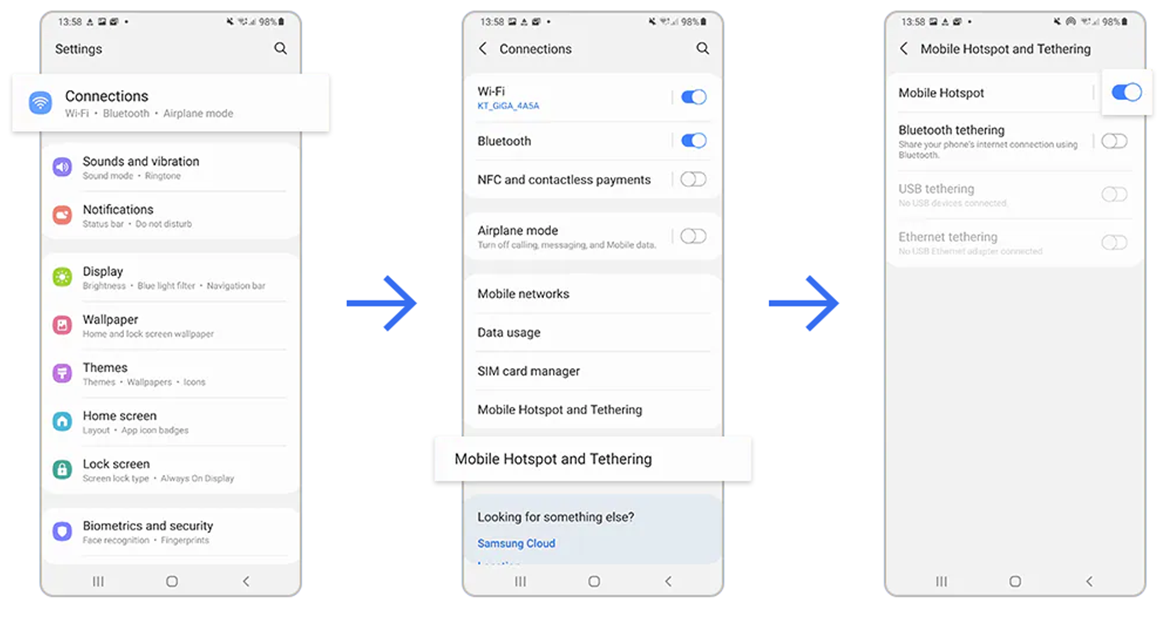
4. On the other device’s screen, search for and select your phone from the Wi-Fi networks list.
iPhone Devices
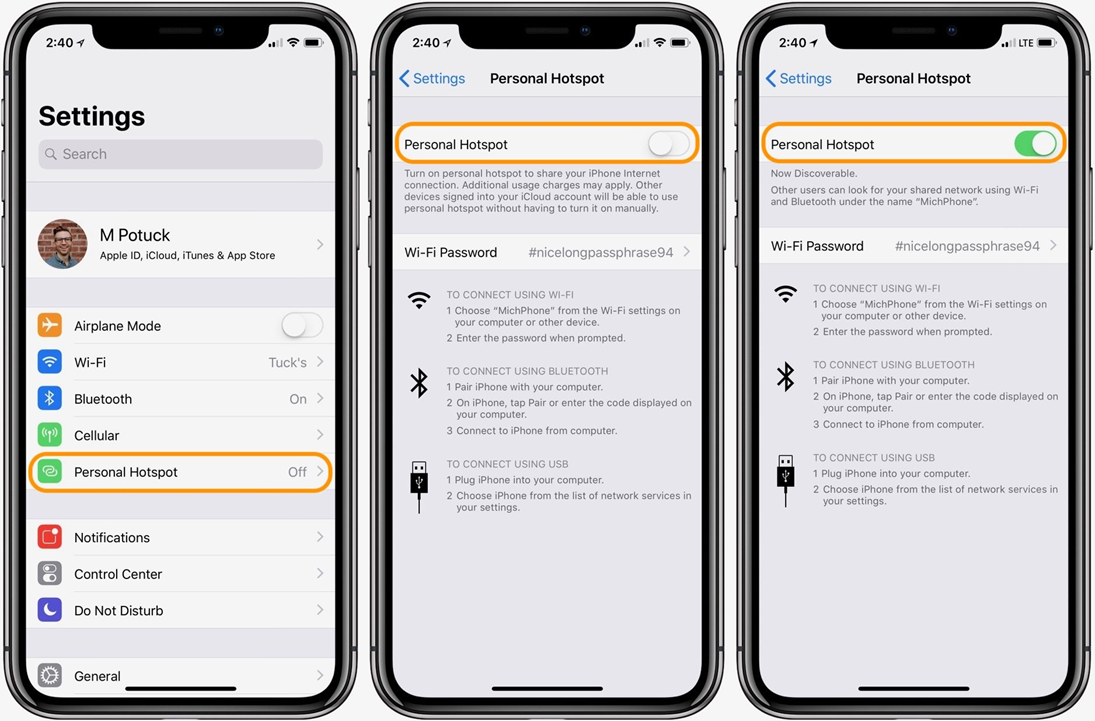
1. Go to Settings > Mobile Data > Personal Hotspot or Settings > Personal Hotspot.
2. Tap the slider next to Allow Others to Join.
3. Alternatively, an option for Personal Hotspot should be shown in your settings below your Mobile Data.
4. When you connect a device to your Personal Hotspot, the status bar turns blue and shows how many devices have joined.
If any further assistance is needed, please contact support on 03309121212 or support@citycom.co.uk
Comments
0 comments
Please sign in to leave a comment.