
Contacts can be added, edited and deleted.
You can view, search and manage your contacts. You can also start calls with them.
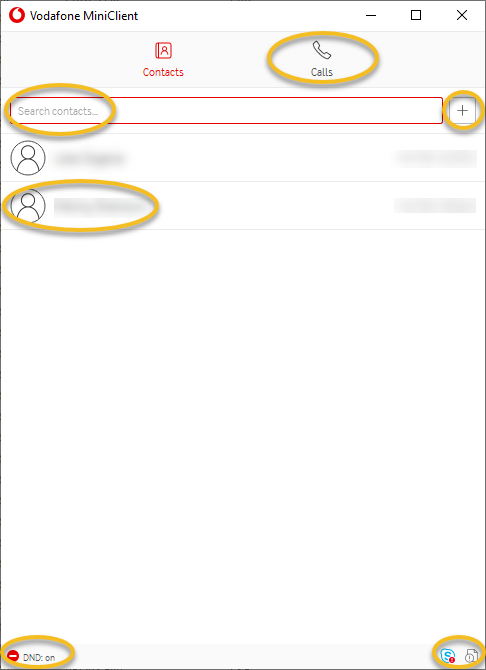
Searching for a contact
You can search for contacts in the Contacts tab. Searching is not case-sensitive.
Search results display in the Contacts tab, below the search box.
Using the search box
-
In the search box, enter the text you want to search for. Searching happens in real time.
You can enter partial information, such as part of a name or phone number, but you must enter at least two characters.
Personal contacts
You can add, edit and remove personal contacts in the Contacts tab.
To add a personal contact
- Select Contacts.
- Select
 and then select Add contact.
 - Enter the details and select Add.
 You can also add personal contacts by right-clicking a non-personal contact, such as a Skype contact or phone number, and selecting Add contact.
To edit a personal contact
- Select Contacts.
- Select a contact.
- Right-click the contact and select Edit contact.
- Modify the details and select Save.
To delete a personal contact
- Select Contacts.
- Select a contact.
- Right-click the contact and select Delete contact.
- Select Yes.
Importing personal contacts
You can import personal contacts from a CSV (comma-separated values) file. You can create the file in a text editor.
The CSV file must meet the following criteria:
- The first line contains the 'First name', 'Surname' and 'Phone Number' column headings.
- Each line under the headings contains the contact’s information. Columns cannot be left blank.
- The phone numbers are maximum 13 digits long.
- The phone numbers contain only digits 0-9 and the following special characters: -+.
An example below shows contents of a CSV file with two contacts.
- " First name";"Surname";"Phone Number"
- " John";"Doe";"9100230131"
- "Alice";"Adams";"9100003234"
To import personal contacts from a CSV file
- Select Contacts.
- Select .
- Select Import contacts from CSV.
- Select Browse, and then select a CSV file.
- Select Next.
- Select the contacts that you want to import.
- Select Save contacts.
Comments
0 comments
Please sign in to leave a comment.