
Managing calls
Your calls are displayed in the Calls tab.
Read more about different areas of One Net miniClient >
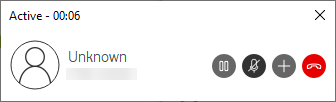
An active call can show the following information:
- The caller’s name and number
- The status of the call: active, on hold
- A timer showing the duration of the call
- Buttons showing the actions you can take for that call
Making calls
Using One Net miniClient, you can make calls in several ways.
 Note: You can have up to four active calls. If you make or answer any other call, the operation fails.
To call a contact
- Select the Contacts tab.
- Double-click the contact.
Or
Right-click the contact and select Call.
To find and call a contact
- Select the Contacts tab.
- In the search box, enter the text you want to search for. Searching happens in real time.
You can enter partial information, such as part of a name or phone number, but you must enter at least two characters. - Double-click the contact.
Or
Right-click the contact and select Call.
To call a number
If you know the number you want to call, you can enter it directly using the dial pad.
- Select the Calls tab.
- Select

- Enter the number and select Call.
To end a call
- In the active call, select

To hold/resume a call
- In the active call, select
 /
/ .
.
Answering calls
For every call you have a set of available actions.
To answer a call
- In the incoming call, select
 .
.
To put a call on hold
- In the active call, select .
To resume a held call
- In the active call, select .
To mute your microphone during the call
- In the active call, select
 .
.
To unmute your microphone during the call
- In the active call, select
 .
.
To send tones during the call
- In the active call, select
 .
. - Select Show Dialpad.
- Dial the number.
To end a call
- In the active call, select
 .
.
Comments
0 comments
Please sign in to leave a comment.